

 About
THE ANSWER
Yes, you can extract all pages as individual files or specify a page range.
Your everyday toolkit
PDF ToolsSplit a PDF into individual pages or extract a range of pages. Download each page as a separate PDF file.
A little less effort
Split PDF into individual pages
Drop a PDF here or click to browse
Single PDF file
Extract a page range or save individual pages from a PDF when a recipient needs only part of a document.
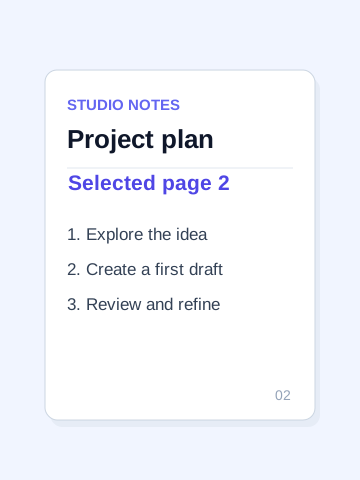
From a five-page PDF, extract pages 2 through 4 and check that the result contains three pages in their original order.
Page ranges are inclusive and must fall within the document. Extracting a page does not redact hidden information on that page. Multiple individual downloads may require browser permission.
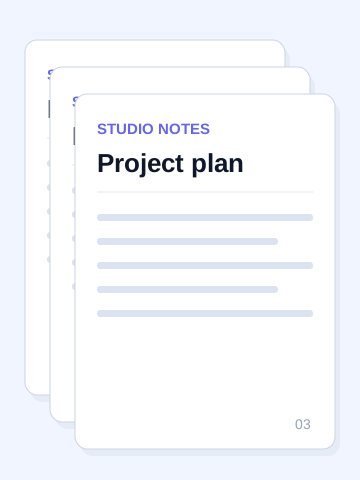 View largerStarting example
A multi-page document
3 pagesYOU’RE EXPLORING
The useful details, before you get started.
Yes, you can extract all pages as individual files or specify a page range.
No server-side limit — processing happens in your browser. Very large PDFs may take longer.
Choose any question to see the details.